Import Google Maps Leads into a CRM: HubSpot, HighLevel, Pipedrive
Clean a Google Maps lead CSV, map it to company records and custom fields, then import it into HubSpot, HighLevel or Pipedrive without creating duplicates.
A Google Maps lead list arrives as a spreadsheet of businesses. A CRM expects people, companies and the links between them. Most failed imports come from that mismatch: duplicate records, phone numbers stored as numbers, ratings dumped into a notes field, and a second city's import that quietly doubles half the database. This guide cleans the file first, then walks through the import in HubSpot, HighLevel and Pipedrive, using each vendor's own help pages as of November 2026.
How should you clean a Google Maps CSV before importing it?
Clean it in a spreadsheet, not in the CRM. Fixing a column before import takes minutes; fixing it across a few hundred records afterwards takes an afternoon. If you have not opened the file yet, follow how to open a Google Maps CSV in Excel or Google Sheets first, so phone numbers and ZIP codes are imported as text and arrive intact.
- 1Keep one row per business. If your tool exported reviews or several emails as extra rows, collapse them so each business appears once.
- 2De-duplicate on phone or website domain. Business names are a weak key: "Smith Dental" and "Smith Dental Care" may be the same practice. Make a helper column with the domain only (strip
https://,www.and anything after the first slash) and sort by it, then by phone. Two rows sharing either value are probably one business, or two branches you want to keep apart on purpose. - 3Split the address. Put street, city, state and postal code in separate columns. CRMs filter and segment on city and state, and Pipedrive uses the address to decide whether two organizations are the same.
- 4Store phones as text in E.164 form, such as
+15125550147. HubSpot's import file guide asks for phone numbers formatted as "+[country code][number]". Our guide to business phone numbers from Google Maps covers the conversion. - 5Add a source column and a date column, for example
Google Mapsand2026-11-25. Months later, they tell you where a record came from and how stale its rating and website data might be. - 6Save as CSV in UTF-8. HubSpot asks for UTF-8 when a file contains non-English characters, and accented business names are common.
What is a Google Maps lead in a contact-centred CRM?
It is a company with no named contact. A Maps listing gives you a business name, address, phone, website and category, and sometimes an email published on the website, usually a shared inbox such as info@. It does not give you the owner's name or job title.
That matters because CRMs differ in what they put at the centre. HubSpot has a separate company object with its own unique key. Pipedrive has organizations, and its import page says companies should be imported as organizations and that people need a name. HighLevel is organised around contacts, so each business becomes a contact record that carries the business name. Decide before you import: one company record per listing, with people added later when you learn who runs the business. Do not invent a contact name to satisfy a required field.
How do you map columns and custom fields?
Map the contact basics to the CRM's standard fields and create custom fields for everything a Maps listing or an audit adds. Create the custom fields before you start the import, as a number field where the value is a number, so you can later filter for, say, a rating under 4.0 or a website score under 50.
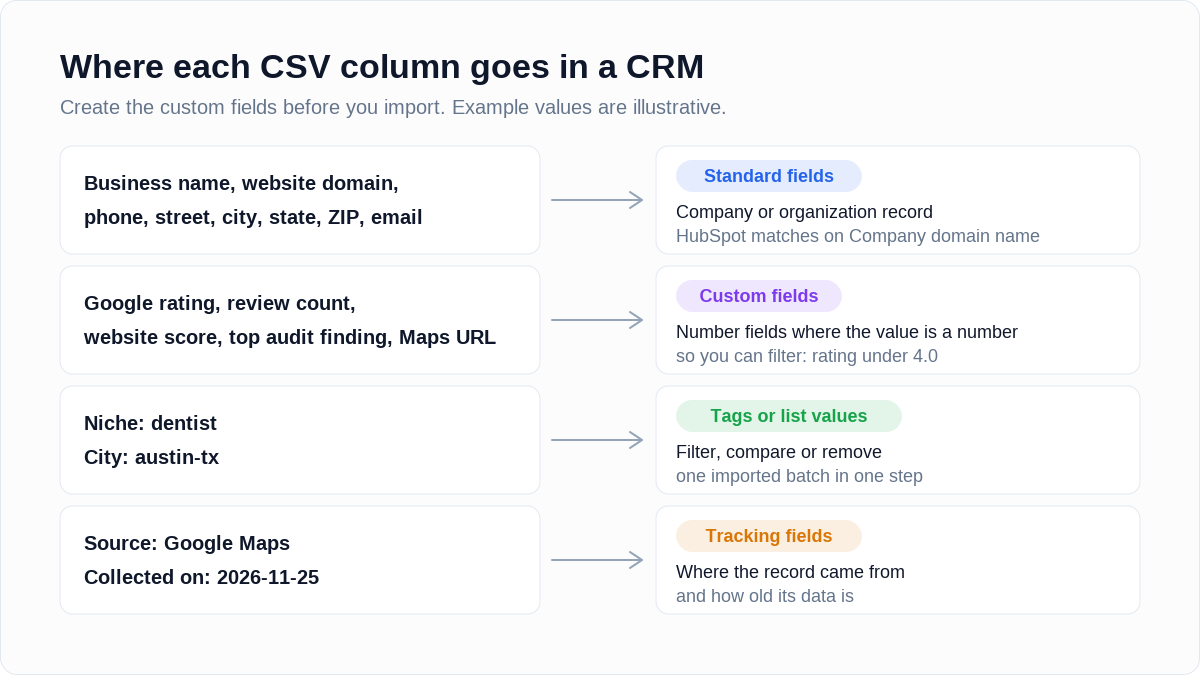
| CSV column | CRM field | Field type to create |
|---|---|---|
| Business name | Company or organization name (HighLevel: the contact's business name field) | Standard |
| Website | Website, plus a domain-only copy for HubSpot's Company domain name | Standard |
| Phone | Phone number | Standard, imported as text |
| Street, city, state, postal code | Address fields | Standard |
| Email (from the business's website) | Standard | |
| Google rating | Google rating | Custom, number |
| Review count | Google review count | Custom, number |
| Website score | Website score (0 to 100) | Custom, number |
| Top audit finding | Top website problem, one short sentence | Custom, single-line text |
| Google Maps URL, if your file has one | Maps listing link | Custom, URL or text |
| Source and collected-on date | Lead source and data date | Standard source field or custom; date |
Keep one finding per record, not the whole audit. A short line such as "Homepage takes 9 seconds to load on mobile" is something you can read in a list view and quote in a first email; the full report belongs in a linked file. If you rank the list before importing, add the result as one more number field. Our post on lead scoring explains why a website score and a lead score are different things.
How do you avoid duplicates when you import again?
Learn the field your CRM matches on and keep it consistent in every file. Each of the three CRMs here matches differently, according to its own help pages:
| CRM | Business record | What it matches on during import |
|---|---|---|
| HubSpot | Company | Company domain name (or Record ID). Contacts match on email. |
| HighLevel | Contact | Email or phone; its help says duplicate contacts cannot be created through CSV uploads. |
| Pipedrive | Organization | Organization name, then address. People: name, then organization, phone or email. |
- Search the CRM before you import a new city. Remove rows whose domain or phone already exists, unless you want them updated.
- Leave out fields you do not want overwritten, such as owner, stage and notes. An import that updates records writes whatever is in the file.
- Tag by niche and city. A tag or list value like
dentistplusaustin-txlets you filter one batch, compare cities and remove a bad import in one step. Add the import date to the tag if you run the same search again later. - Re-import changed values only. If you refresh ratings or website scores, import a file with the key field and the changed columns, using an update option.
How do you import Google Maps leads into HubSpot?
Import the businesses as companies, with Company domain name as the unique key. These steps follow HubSpot's import objects article as read on 25 November 2026:
- 1Click More, then Data Management, then Data Integration (or go to Data Management, Data Integration directly if More is not shown).
- 2In the Import a file section, click Import data, then Advanced imports (all objects).
- 3Select Companies, plus Contacts only if your file has named people, then click Next.
- 4Choose how to import: Create and update, Create new only, or Update existing only.
- 5Upload the CSV and map the columns. Map the domain-only column to Company domain name, which shows a key icon, and the rating, review and audit columns to the custom properties you created.
De-duplication rule: with Create and update, HubSpot says the import will "identify and update existing records", and it uses the column mapped to Company domain name (or Record ID) as the unique identifier for companies. Rows with a new domain become new companies. The import file guide says the domain property "only accepts values up to the top-level domain (e.g., .com, .edu)" and that text after it is removed. Files from HubSpot's free tools can be up to 20 MB, according to the same guide.
How do you import Google Maps leads into HighLevel?
Import each business as a contact from the Contacts page. These steps follow HighLevel's article on importing contacts and opportunities via CSV:
- 1Open Contacts from the left-hand menu, go to the Smart Lists tab and click Import Contacts. Only users with Admin access can import.
- 2Choose Contacts and click Next.
- 3Upload the CSV. It must be a single-sheet .csv with a header row; the article asks for files under 30 MB.
- 4Choose how to import, create, update or both, then map each column to a field. Map the business name, phone, email, address and your custom fields.
- 5On the review step, add a tag for the niche and city, optionally create a Smart List, tick the confirmation box and start the import.
De-duplication rule: HighLevel's deduplication preferences article says CSV imports "automatically merge contacts based on phone numbers or email addresses, regardless of the setting", and that the Allow Duplicate Contact setting does not apply to CSV uploads. Two branches that share a central phone number will therefore merge, so check shared numbers before you upload.
How do you import Google Maps leads into Pipedrive?
Import the businesses as organizations. These steps follow Pipedrive's article on importing data with spreadsheets:
- 1Create custom fields first, under account menu, Personal preferences, Data fields, or add them from the mapping step.
- 2Go to account menu, Tools and apps, Import data, Import from spreadsheet, and click Get started.
- 3Select Organizations as the data type in the file. Organizations require a name.
- 4Upload the spreadsheet. Pipedrive accepts XLS, XLSX or CSV, one tab, a header row, no more than 200,000 rows and under 50 MB.
- 5Map the fields, check the preview, then choose how to handle duplicates and click Start import.
De-duplication rule: Pipedrive's article on avoiding duplicates during an import says that once an organization name is recognised, it checks the organization address, and merges the records if the address matches one in your account or the file. That is why the split, consistently formatted address from the cleaning step matters. You can also skip merging and create separate records.
Your account may look different. Menu names depend on your plan, your role and when the vendor last changed its interface. If a label here does not match your screen, open the linked help article, which the vendor keeps current.
If you build your lists with CazaLead's Google Maps lead finder, the export is a CSV with the business details, the email where the website publishes one, the 0 to 100 website score and the problems found. CazaLead has no CRM integration, so the import itself runs through the steps above. The free plan covers 50 leads a month, enough to test a full import on a small batch before committing a whole city.
Ready to find your first leads?
Start with 50 free leads every month. No credit card needed.
Frequently Asked Questions
Sources
- HubSpot Knowledge Base: Import records for multiple objects
- HubSpot Knowledge Base: Set up your import file
- HighLevel Support: Importing contacts and opportunities via CSV
- HighLevel Support: Allow duplicate contacts (contact deduplication preferences)
- Pipedrive Knowledge Base: Importing data into Pipedrive with spreadsheets
- Pipedrive Knowledge Base: How to avoid duplicates during an import